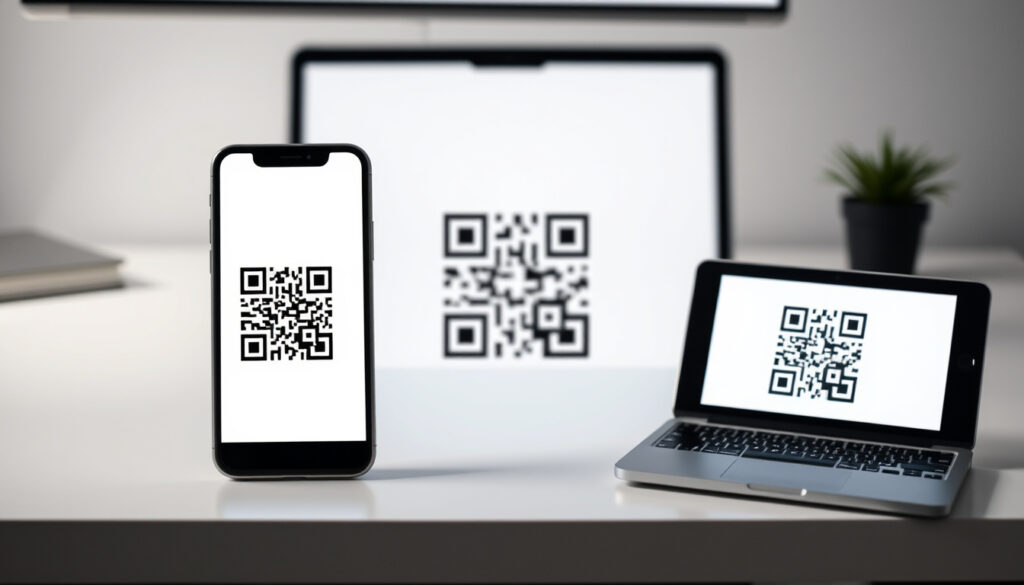
How to Scan QR Code – iPhone Android PC Guide
QR codes have become a ubiquitous part of daily life, appearing on restaurant menus, event tickets, product packaging, and promotional materials. Understanding how to scan these codes efficiently can save time and unlock convenient access to information, payments, and online content. Whether using an iPhone, Android device, desktop computer, or older hardware, multiple methods exist to read QR codes without requiring specialized equipment.
Modern smartphones come equipped with built-in capabilities that eliminate the need for third-party applications in most scenarios. This guide provides comprehensive instructions for scanning QR codes across different devices, along with safety considerations and troubleshooting advice. The information applies to current operating systems and standard hardware configurations.
How to Scan a QR Code on iPhone
Apple integrated QR code scanning directly into the Camera app starting with iOS 11, making the process straightforward for most iPhone users. The native implementation requires no additional downloads or configuration changes on newer devices.
Using the Native Camera App
Open the Camera application from the Home screen or by swiping up from the Lock screen. Point the camera toward the QR code, ensuring the code is well-lit and fully visible within the frame. The system automatically detects the code and displays a notification banner at the top of the screen. Tap the notification to follow the embedded link, which may open a website, initiate a Wi-Fi connection, add a contact, or execute other programmed actions.
Steady positioning improves recognition speed significantly. Hold the device approximately 6-12 inches from the QR code for optimal results. Most iPhone models running iOS 11 or later support this functionality without any special settings adjustments.
Enabling QR Scanning in Settings
While QR scanning typically operates by default, confirming the feature is enabled provides peace of mind. Navigate to Settings, then Camera, and verify that “Scan QR Codes” toggle is switched on. This setting ensures the Camera app actively processes QR patterns during use.
For iPhones with Live Text functionality (iOS 15+), simply photograph a QR code and long-press the detected pattern to extract the embedded information, even if the original code was captured days earlier.
How to Scan a QR Code on Android
Android devices offer multiple native pathways for QR code scanning, with Google Lens serving as the primary cross-generation solution. The approach varies slightly depending on device manufacturer and Android version.
Using Google Lens or Camera App
On most Android devices running Android 9 or later, open the Camera app and point it at the QR code. Auto-detection triggers without requiring any mode selection or button presses. Alternatively, access Google Lens by opening the Google app, tapping the Lens icon in the search bar, and aiming the camera at the target code.
Google Assistant provides another convenient entry point. Say “Hey Google” or long-press the home button, then select the Lens option. For codes appearing in photos, emails, or applications already displayed on screen, Circle to Search (available on supported devices) allows circling the specific QR pattern to extract its contents.
Recommended Free Scanner Apps
While native options cover most needs, certain scenarios benefit from dedicated applications. Google Lens remains free and available for iOS devices through the App Store, offering consistent cross-platform functionality. For users requiring batch scanning or specialized output formats, third-party options exist but introduce additional permission requirements.
Some Android manufacturers pre-install modified camera applications with integrated QR scanning. Samsung devices, for example, often include Samsung Pass for secure credential retrieval alongside standard scanning capabilities. Checking device-specific documentation clarifies available features.
Do You Need an App to Scan QR Codes?
For the vast majority of modern smartphone users, the answer is no. Both iOS and Android operating systems have incorporated QR scanning directly into their standard camera applications, rendering dedicated scanner apps largely unnecessary for routine use.
Built-in Options on Phones
iPhones running iOS 11 and newer can scan QR codes through the standard Camera app without any additional software. Android devices with Android 9 (Pie) and subsequent versions support native scanning via Camera, Google Lens, or Google Assistant integration. These built-in methods handle standard QR codes, micro QR codes, and most modified variants encountered in everyday situations.
Best Third-Party Apps
Situations warranting third-party applications include scanning extremely dense QR codes, processing multiple codes simultaneously, generating output in specific formats, or accessing legacy devices running older operating systems. When selecting third-party options, carefully review requested permissions, as some applications request unnecessary access to contacts, location, or storage.
How to Scan QR Codes on PC or Mac
Desktop and laptop computers lack the built-in cameras of smartphones, but several practical solutions enable QR scanning without requiring specialized hardware or expensive software packages.
Using Webcam with Web Tools
Web-based QR scanners operate through any browser with camera access permissions. Platforms like ScanApp (open-source) allow users to connect a webcam and scan codes in real-time or upload existing images containing QR patterns. These tools function across Windows, macOS, and Linux operating systems, providing a platform-independent solution that requires no installation beyond initial browser setup.
Desktop Apps and Extensions
For regular desktop scanning needs, browser extensions streamline the process by adding QR functionality directly to the browsing experience. Alternatively, applications designed for specific operating systems offer additional features such as history tracking, code generation, and batch processing capabilities.
When using web-based tools, grant camera access only to trusted websites and verify the URL matches the expected service. Malicious sites may attempt to access cameras under the guise of providing scanning functionality.
Is Scanning a QR Code Safe?
QR codes themselves pose no inherent physical risk—they are simply visual patterns encoding text information. However, the destinations these codes direct users toward warrant careful consideration. Malicious actors occasionally embed harmful links within QR codes placed in public spaces or distributed through unexpected channels.
Common Risks and Precautions
The primary risks associated with QR code scanning include phishing attacks, malware distribution, and unauthorized data collection. A technique known as “quishing” combines QR codes with phishing elements, potentially leading users to credential-harvesting websites or triggering unintended system actions. Links to premium-rate services, fraudulent payment pages, and compromised downloads represent additional threats.
How to Verify QR Codes
Native camera applications on both iPhone and Android typically display a preview of the destination URL before executing any action. This preview mechanism provides an opportunity to verify the link’s legitimacy before proceeding. Users should examine URLs carefully, paying particular attention to domain names and the presence of secure (HTTPS) connections. Avoid scanning QR codes from untrusted physical locations or digital messages that arrive unexpectedly.
When encountering QR codes in public spaces, look for signs of tampering—stickers placed over original codes, mismatched designs, or unusual positioning. When in doubt, manually navigate to the expected service rather than scanning an unverified code.
Timeline: The Evolution of QR Code Scanning
Understanding the development of QR technology provides context for current capabilities and future possibilities.
- : Denso Wave, a subsidiary of Toyota, invents the QR code in Japan to track vehicle components during manufacturing.
- : Early smartphone applications begin enabling QR scanning, though adoption remains limited outside Japan.
- : Apple integrates native QR scanning into the iOS Camera app with iOS 11, dramatically expanding Western accessibility.
- : Android Camera application incorporates automatic QR detection, following years of reliance on third-party applications.
- : Contactless technologies driven by pandemic requirements accelerate QR code adoption globally, from restaurant menus to retail payments.
- : Google Lens becomes the default scanning interface on Pixel devices, with broader Android deployment following.
What We Know and What Remains Uncertain
| Established Information | Uncertainties |
|---|---|
| Native QR scanning works reliably on devices running iOS 11+ and Android 9+. | Specific detection rates vary based on hardware, lighting, and code quality. |
| Standard QR codes pose minimal physical risk; content safety depends on linked destinations. | Full scope of emerging quishing techniques not publicly documented. |
| Google Lens provides the most consistent cross-platform scanning experience. | Future OS-level changes may modify or remove current scanning methods. |
| Desktop scanning requires external tools as no native Windows or macOS camera integration exists. | Third-party application permission practices continue evolving with operating system updates. |
The Growing Role of QR Codes in Daily Life
QR codes have transcended their industrial origins to become essential infrastructure for modern commerce, communication, and information access. The COVID-19 pandemic accelerated this transformation, as businesses sought touchless alternatives to physical menus, paper tickets, and shared surfaces. Restaurants now routinely display QR codes linking to digital menus, while event organizers use them for streamlined check-in processes.
Retail environments leverage QR codes for inventory management, product authentication, and promotional campaigns. Mobile payments frequently utilize QR-based transactions, particularly in regions where contactless card infrastructure remains less developed. Educational institutions incorporate these codes into learning materials, providing students immediate access to supplementary resources, videos, and interactive content.
The technology continues evolving, with dynamic QR codes allowing content updates without reprinting, and enhanced security features protecting against counterfeiting and unauthorized modifications. As devices become more sophisticated, the boundary between scanning and augmented reality experiences continues blurring.
Official Guidance and Sources
Apple’s official documentation confirms the simplicity of iPhone QR scanning, emphasizing that no additional configuration is required beyond pointing the Camera app at a valid code. The company recommends ensuring sufficient lighting and stable positioning for reliable detection.
Open Camera and point at the QR code. Your device automatically recognizes the code and displays relevant information or actions.
— Apple Support Documentation
Google’s guidance highlights Google Lens as a versatile scanning solution, noting its ability to translate text, identify objects, and process QR codes simultaneously. The company recommends Lens for users seeking enhanced functionality beyond basic code scanning.
Use Lens for instant identification of QR codes, text translation, product information lookup, and real-world object recognition.
— Google Android Support
Summary and Recommendations
Most smartphone users can scan QR codes immediately using their device’s built-in camera, with iOS 11 and Android 9 representing the minimum version requirements. iPhone owners should verify the Camera app’s QR scanning toggle remains enabled in Settings, while Android users can choose between Camera auto-detection, Google Lens, or Assistant-based access. Desktop users benefit from web-based scanning tools that require only a browser and webcam. Regardless of device, previewing any detected link before following it represents the single most effective safety measure against malicious QR codes.
For readers exploring related topics, a comprehensive guide to How to Cast On Knitting – Step-by-Step Beginner’s Guide offers additional practical skills, while those interested in personal documentation may find value in our resource on How to Write a Personal Statement – Structure, Tips and Examples.
Frequently Asked Questions
Why won’t my QR code scan?
Common causes include insufficient lighting, camera lens obstructions such as fingerprints or cases, holding the device too close or too far from the code, outdated operating system software, disabled scanning features in settings, or damage to the QR code itself. Try cleaning the lens, repositioning the device, and ensuring the code is completely visible within the camera frame.
What if I don’t have a smartphone?
Desktop users can utilize web-based scanning platforms that work with standard webcams. Library computers, workplace terminals, and borrowed devices also provide occasional QR access. Some public locations offer dedicated scanning kiosks for specific services.
Can QR codes work offline?
QR code scanning itself requires no internet connection. However, accessing the linked content—whether a website, app store page, or payment interface—typically requires connectivity. Some QR codes encode offline data such as contact information or Wi-Fi credentials that function without internet access.
Do QR codes expire?
Static QR codes remain functional indefinitely as long as the physical print or digital display remains undamaged and scannable. Dynamic QR codes may be deactivated by their creators at any time, though expiration dates are not inherent to the technology itself.
What information can a QR code contain?
QR codes encode various data types including URLs, plain text, email addresses, phone numbers, SMS messages, Wi-Fi network credentials, calendar event details, vCards with contact information, and geographic coordinates. The specific content depends entirely on how the code was originally generated.
Can I scan a QR code from a screenshot?
Yes. iPhones with Live Text (iOS 15+) can detect and process QR codes within saved screenshots through long-press interaction. Android users can achieve similar results using Google Lens by selecting the option to search within photos rather than using the camera directly.
How do I create my own QR code?
Numerous free online generators allow creation of QR codes for URLs, text, contacts, and other data types. Input the desired content, select output specifications such as size and error correction level, and download or share the generated image. Consider using dynamic QR services for content that may require future updates.
More related posts
 Harry Potter World Tickets – Prices, Booking Guide & Availability
 Codes for Blox Fruits – 10 Active Rewards March 2026
 Blood Moon Total Lunar Eclipse Tonight – UK Viewing Guide
 Philadelphia Eagles vs 49ers Match Player Stats – Key Stats
 Cast of Back to the Future – Full Cast Across Films and Musical
 Andrew Loses Royal Titles – Full Breakdown of Palace Decision
 Vodafone Top Up Number – UK Codes and Guide
 Aqa 2024 Grade Boundaries – Official Gcse and A-Level Guide